


myWooApp – Mobile App Overview for WooCommerce Site Owners
What is myWooApp?
myWooApp is a React native Android application that turns your WooCommerce store into a polished mobile shopping experience. It pulls live data through the WooCommerce REST API, so customers can browse, buy, and manage their accounts on‑the‑go—without any content duplication.
Branding, configuration, and build delivery are handled entirely through our WordPress companion plugin, WooMobileApp.
Download the Demo App
You can test-drive myWooApp by downloading the public demo version from the Play Store:
Apple App store Link: iOS app
Use the following credentials to log in and explore all features:
| Username | Password |
|---|---|
UserDemo |
demouserpassword |
Once installed, simply log in with the test credentials above on any Android device (Android 10 or newer).
Login
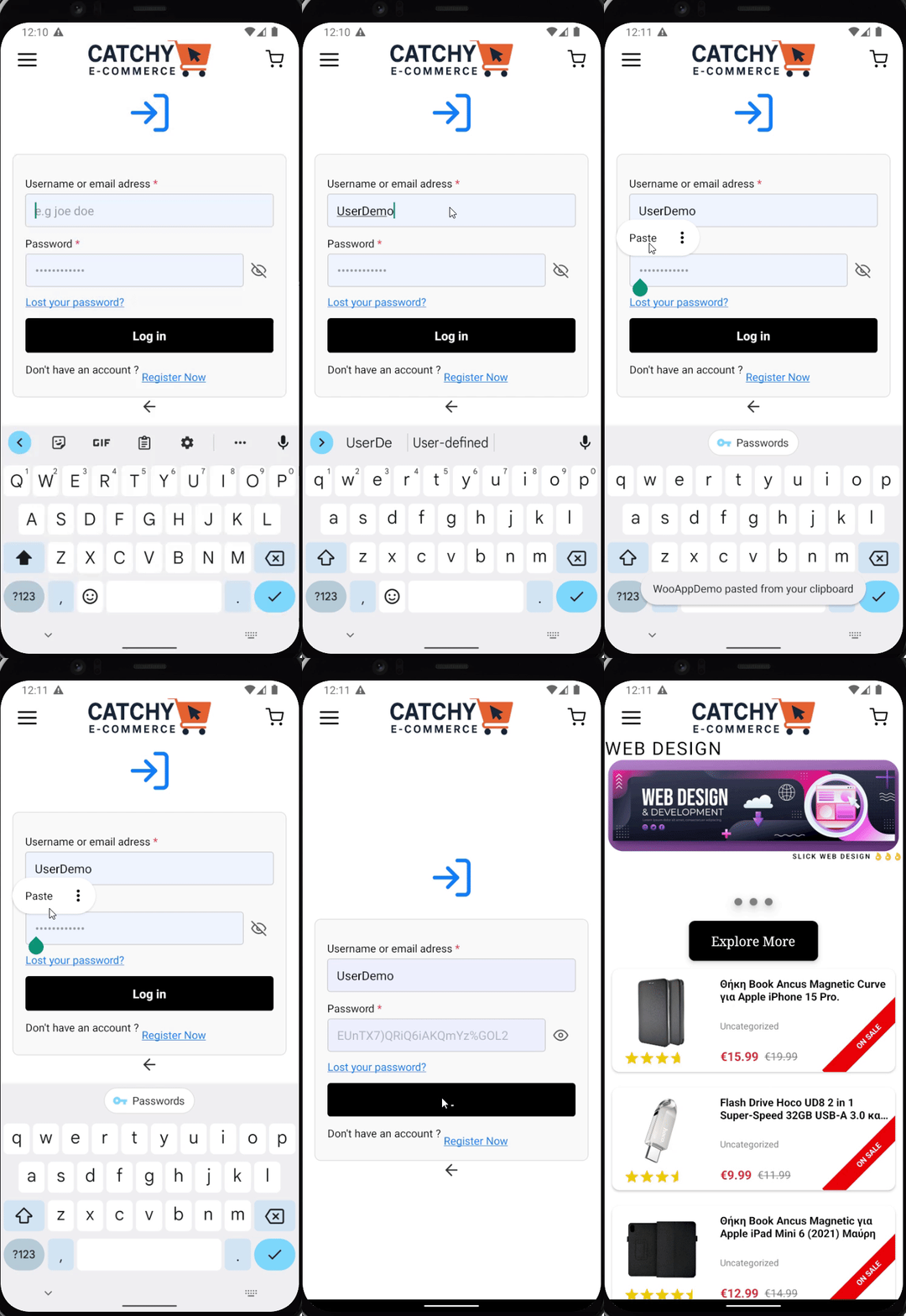
To log in to myWooApp, simply:
Open the app,
Enter your email address and password
for the example we will use the credentials provided by this guide
Tap Log in
- Non customer Login example

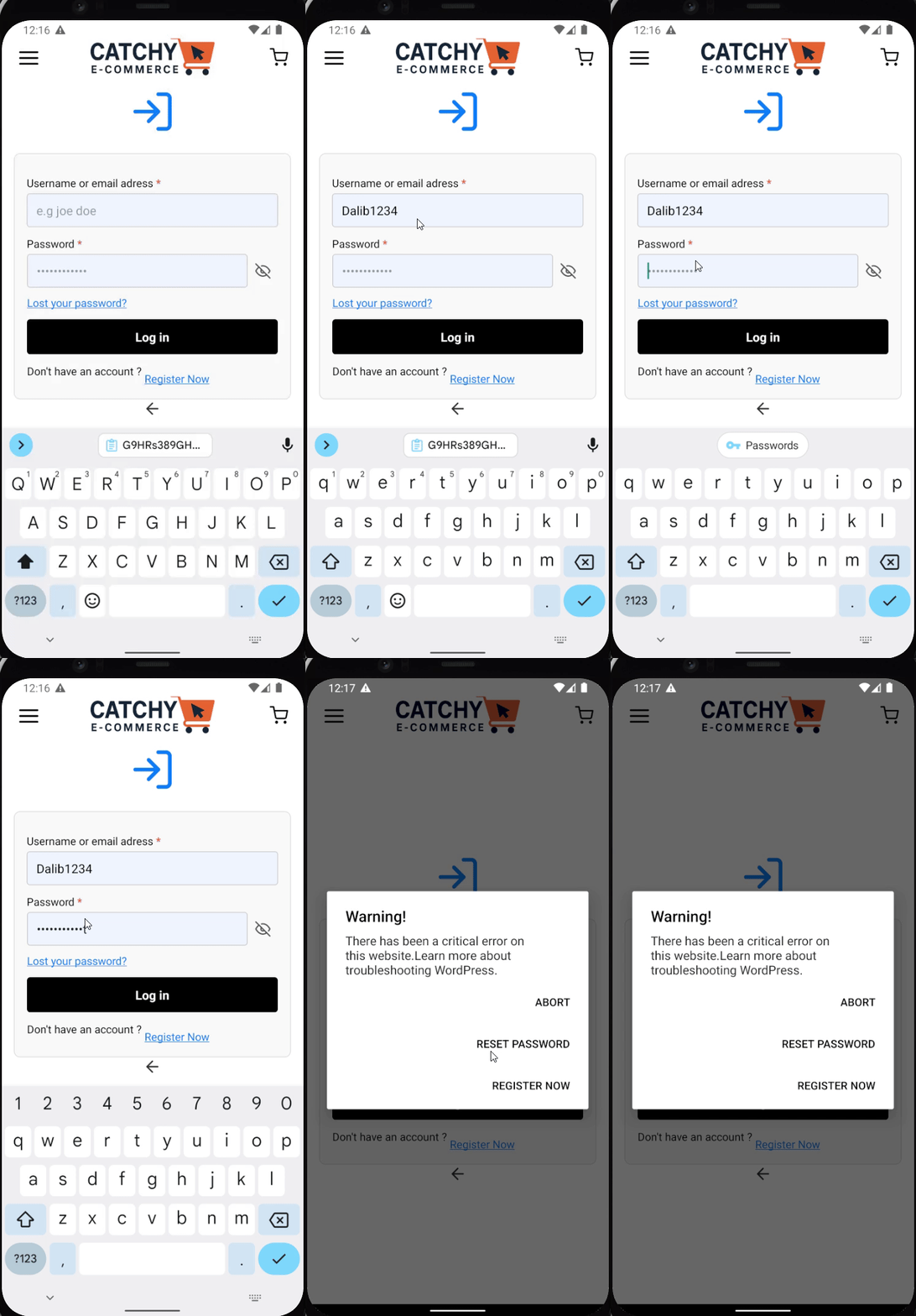
Only WooCommerce customers can log in via the app.
Administrator, shop manager, and other non-customer roles are not supported for security and UX consistency.
Once logged in, customers can access their account, view orders, manage their profile, and begin shopping right away.
Orders
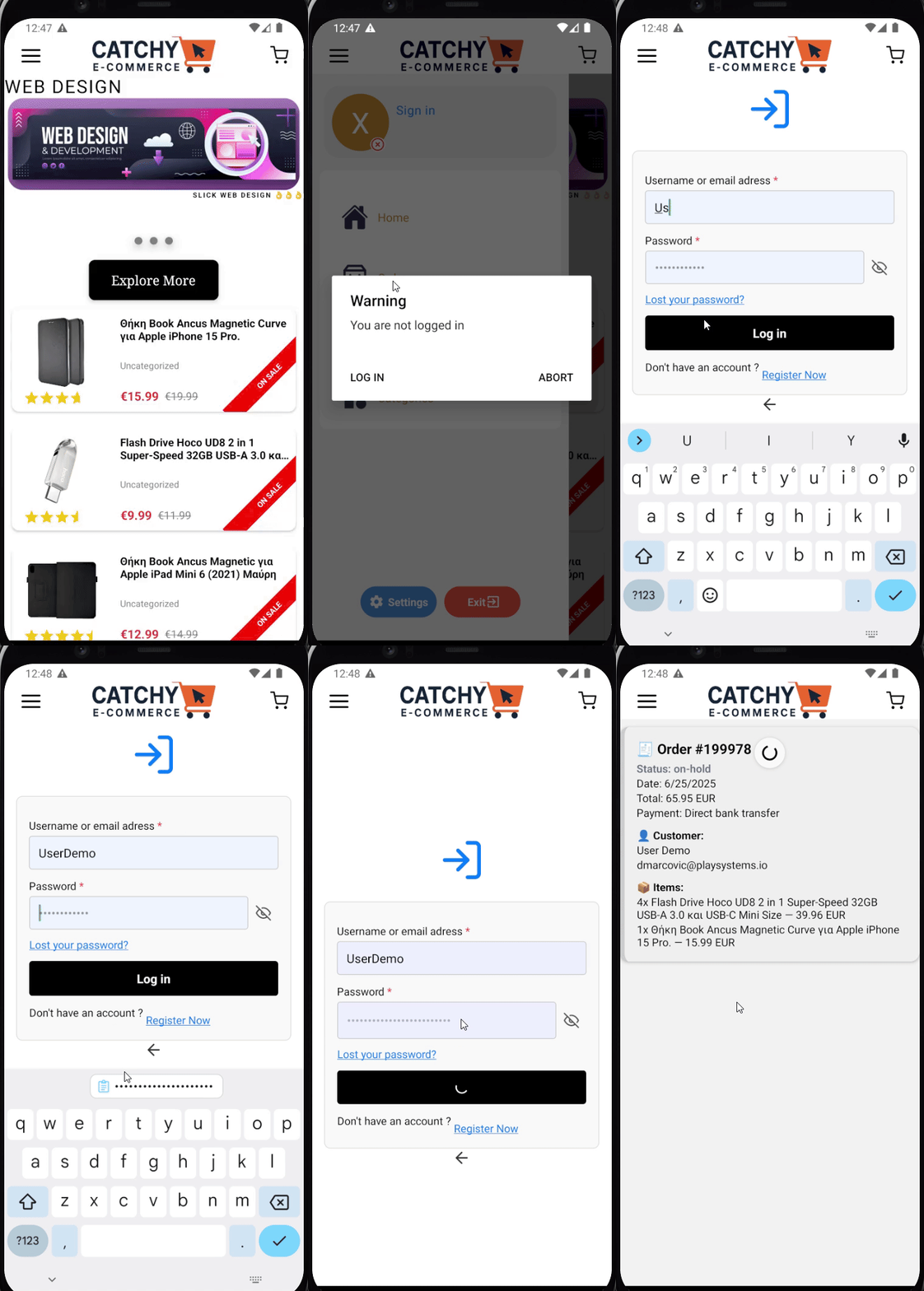
Customers can view their Order History only after they are logged in.
-
Tap Orders in the Drawer bar.
-
A list of the customer’s past orders (number, date, total, status) appears.
Guests and non-customer roles cannot access the Orders section.
Cart
Customers and guest users can browse products and add items to the cart at any time.
The cart is stored locally on the device using local storage. This ensures quick performance and even allows users to keep their cart if they close and reopen the app later.
-
To add an item, tap Add to Cart on any product.
-
To view the cart, tap the Cart icon in the Top Bar.
-
From there, users can update quantities or remove products.
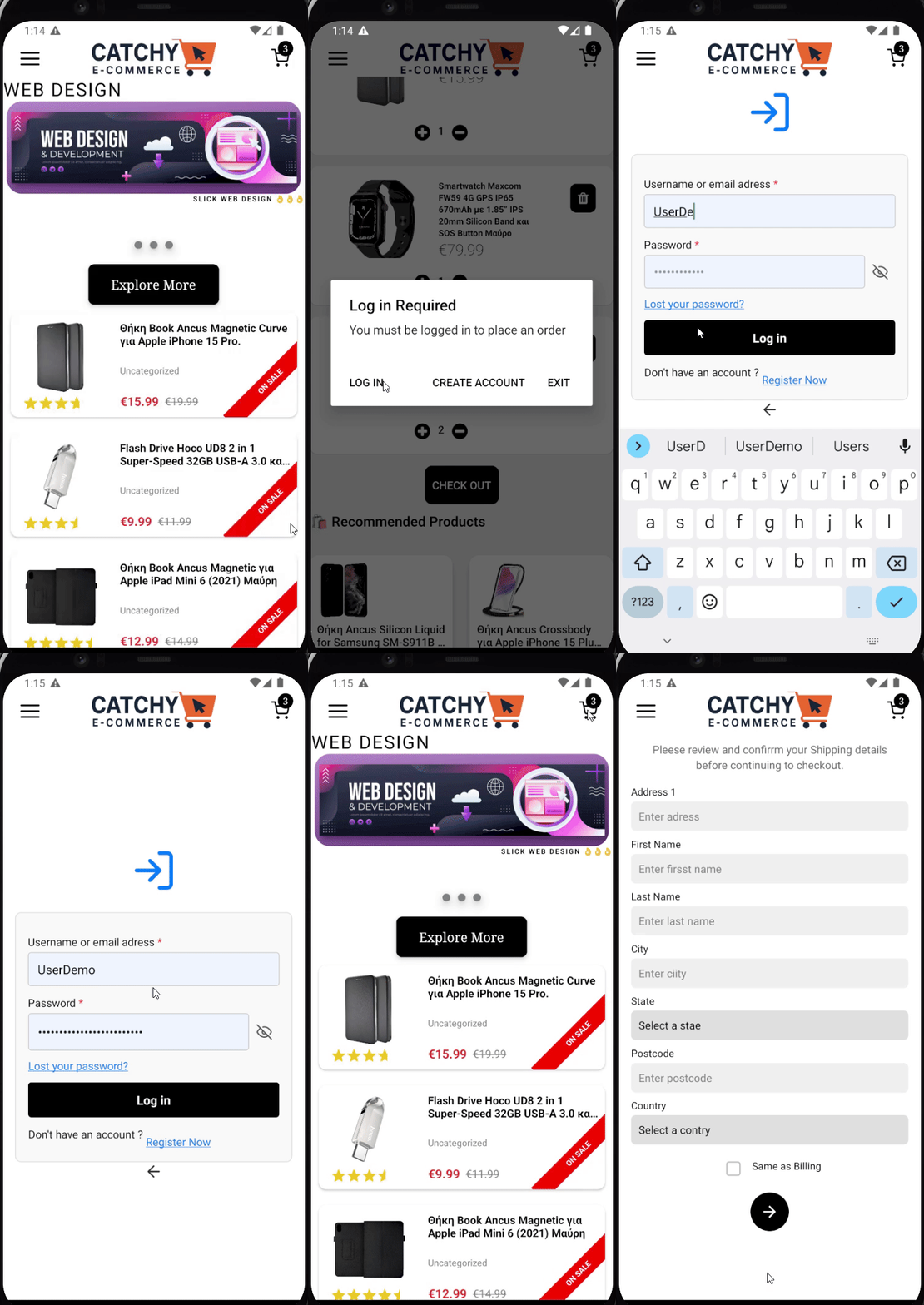
Only logged-in customers can proceed to checkout.
If a guest user tries to check out, they’ll be prompted to log in or register first.
Banners
The home screen can display up to three rotating banners.
Field guide
-
image_url – direct URL to a JPEG/PNG image. Recommended size: 1920 × 1080 px (16:8 ratio). Keep files under 500 KB for faster loading.
-
title – short, punchy headline (20 characters or fewer works best).
-
description – one-line call-to-action or teaser text; emojis are supported.
-
action – tells the app what to do when the banner is tapped (currently this feature is disabled):
-
new_arrivals– open the “New Arrivals” listing -
featured– open the “Featured Products” listing -
on_sale– open the “On-Sale” listing
-
-
categories – here you can specify the target category you want the user to land to when a banner is tapped.
You’ll set these banners control in the WooMobileApp plugin under Banner Configuration tab.
see. Plugin Guide
Product Categories
myWooApp shows only your parent categories. A tap on any parent loads all products under that branch and offers a filter modal for price, attributes, etc.
To keep this working smoothly:
-
Keep a clean hierarchy: broad, meaningful parents (e.g., Electronics, Clothing).
-
Assign a featured image to every parent category—these are the thumbnails the app displays.
-
Avoid empty parents: make sure each top-level category (or its children) actually contains products.
-
Maintain attributes & tags in WooCommerce so the in-app filter modal is useful.
Follow this structure and the app will always present a fast, one-tap path from category to products.